The short answer: run
systemctl list-timers --all. If your timer is not in the list, it was never started. If it is there with-under NEXT while the job is not running, it is loaded but will not fire: look atsystemctl status <name>.timerand the journal. None of these fails loudly. The reliable signal is a monitor outside the machine that expects a ping after each run.
If you are new to systemd timers, four words cover most of this post:
- A unit is a small text file that tells systemd about one thing it manages.
- A timer unit (
.timer) holds the schedule. Think of it as the alarm clock. - A service unit (
.service) holds the command to run. It is the job the alarm clock starts. - The journal is systemd's log.
journalctl -u <name>shows what a unit printed.
Two files means two places to go wrong, and neither is loud about it. Part one is seven ways the alarm clock never rings. Part two is sneakier: the job runs, systemd says Result=success, and the backup file is empty.
I ran everything on 16 and 18 November 2026 in a Debian 13 container with systemd 257 and PostgreSQL 17. The output is pasted from those runs and trimmed to the lines that matter. Where a test needs several runs, the timer fires every ten seconds, so nobody has to wait until 02:00.
The job#
A nightly dump of a small shop database, as most people write it the first time:
# /etc/systemd/system/shop-backup.service
[Unit]
Description=Nightly dump of the shop database

[Service]
Type=oneshot
User=postgres
ExecStart=/usr/local/bin/shop-backup.sh
# /etc/systemd/system/shop-backup.service
[Unit]
Description=Nightly dump of the shop database
[Service]
Type=oneshot
User=postgres
ExecStart=/usr/local/bin/shop-backup.sh# /etc/systemd/system/shop-backup.timer
[Unit]
Description=Run the shop database dump every night at 02:00
[Timer]
OnCalendar=*-*-* 02:00:00
Persistent=true
[Install]
WantedBy=timers.target# /etc/systemd/system/shop-backup.timer
[Unit]
Description=Run the shop database dump every night at 02:00
[Timer]
OnCalendar=*-*-* 02:00:00
Persistent=true
[Install]
WantedBy=timers.target#!/bin/bash
# /usr/local/bin/shop-backup.sh
pg_dump "$DB_NAME" | gzip > "/var/backups/shop/shop-$(date -u +%F).sql.gz"#!/bin/bash
# /usr/local/bin/shop-backup.sh
pg_dump "$DB_NAME" | gzip > "/var/backups/shop/shop-$(date -u +%F).sql.gz"Type=oneshot means the service runs a command once and exits. systemd-analyze verify, systemd's own checker, accepts both unit files. Remember that.
Start with one command#
$ systemctl list-timers shop-backup.timer
NEXT                        LEFT LAST PASSED UNIT              ACTIVATES
Tue 2026-11-17 02:00:00 UTC  11h -         - shop-backup.timer shop-backup.service
$ systemctl list-timers shop-backup.timer
NEXT LEFT LAST PASSED UNIT ACTIVATES
Tue 2026-11-17 02:00:00 UTC 11h - - shop-backup.timer shop-backup.serviceThis is a healthy timer that has not run yet. NEXT is when it will fire. LAST is when it last did. Almost every problem in part one looks like one of two things: the timer is missing from this list, or it is there with - under NEXT.
One warning: on a timer with Persistent=true, LAST can show the moment the timer was switched on, not a real run. journalctl -u shop-backup.service is the proof that the job ran.
Part one: the timer does not fire#
1. The timer was never started#
Copying two files into /etc/systemd/system schedules nothing.
$ systemctl is-enabled shop-backup.timer
disabled
$ systemctl is-active shop-backup.timer
inactive
$ systemctl is-enabled shop-backup.timer
disabled
$ systemctl is-active shop-backup.timer
inactiveThe classic slip is enabling the service when you meant the timer. The fix:
systemctl enable --now shop-backup.timersystemctl enable --now shop-backup.timerenable means "start this at every boot". --now means "and also right now". You need both. With enable alone, the timer waits for the next reboot. With start alone, it is gone after the next reboot.
2. The service it points at does not exist#
A timer starts the service with the same name. I made orders-export.timer with no orders-export.service, which is what a half-finished rename looks like:
$ systemctl enable --now orders-export.timer
Job failed. See "journalctl -xe" for details.
$ journalctl -b | grep orders-export
systemd[1]: orders-export.timer: Refusing to start, unit orders-export.service to trigger not loaded.
$ systemctl enable --now orders-export.timer
Job failed. See "journalctl -xe" for details.
$ journalctl -b | grep orders-export
systemd[1]: orders-export.timer: Refusing to start, unit orders-export.service to trigger not loaded.systemd-analyze verify passed this timer. And because the enable half worked, is-enabled answers enabled from now on, for a timer that is dead.
3. The schedule does not parse#
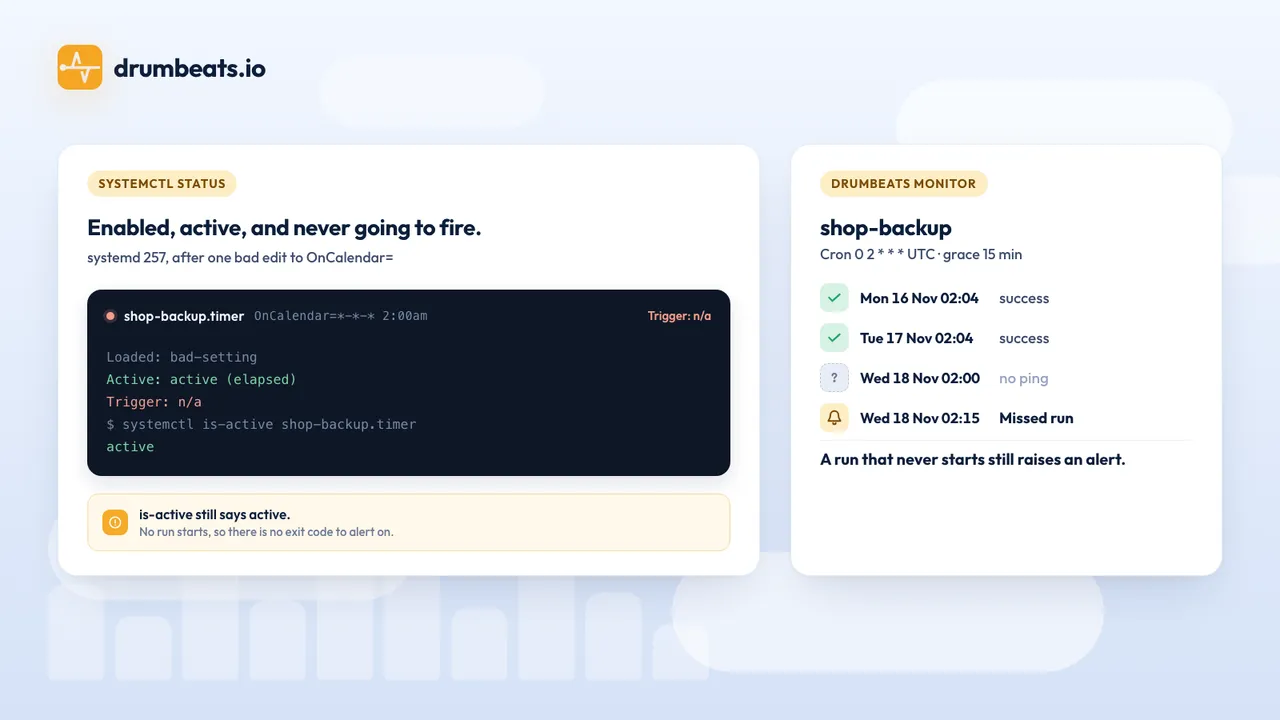
OnCalendar= is not cron syntax, and it does not take 2:00am. The dangerous version is an edit to a timer that is already running. I changed the line to OnCalendar=--* 2:00am and reloaded:
$ systemctl status shop-backup.timer
     Loaded: bad-setting (Reason: Unit shop-backup.timer has a bad unit file setting.)
     Active: active (elapsed) since Wed 2026-11-18 17:15:13 UTC; 45s ago
    Trigger: n/a
$ systemctl status shop-backup.timer
Loaded: bad-setting (Reason: Unit shop-backup.timer has a bad unit file setting.)
Active: active (elapsed) since Wed 2026-11-18 17:15:13 UTC; 45s ago
Trigger: n/aEnabled, active, and never going to fire. Any health check that asks is-active gets the answer it wants.
Test the expression before it goes into the file:
$ systemd-analyze calendar "*-*-* 02:00:00"
Normalized form: *-*-* 02:00:00
    Next elapse: Tue 2026-11-17 02:00:00 UTC
$ systemd-analyze calendar "*/15 * * * *"
Failed to parse calendar specification '*/15 * * * *': Invalid argument
$ systemd-analyze calendar "*-*-* 02:00:00"
Normalized form: *-*-* 02:00:00
Next elapse: Tue 2026-11-17 02:00:00 UTC
$ systemd-analyze calendar "*/15 * * * *"
Failed to parse calendar specification '*/15 * * * *': Invalid argumentAnd after every edit, run systemctl daemon-reload. Until you do, systemd keeps using the old file, and a correct edit changes nothing.
4. The timer counts from the last run, and there was no last run#
OnUnitActiveSec=10s means "ten seconds after the service last started". If that is the only setting and the service has never run, there is nothing to count from:
$ systemctl list-timers --all poll.timer        # 25 seconds later
NEXT LEFT LAST PASSED UNIT       ACTIVATES
-       - -         - poll.timer poll.service
$ systemctl list-timers --all poll.timer # 25 seconds later
NEXT LEFT LAST PASSED UNIT ACTIVATES
- - - - poll.timer poll.serviceNo error anywhere. Adding OnActiveSec=5s (or OnBootSec=) gives it a first run, and the ten-second cycle worked after that.
5. The previous run never ended#
If the service is still running when the timer fires, systemd leaves it alone. That is right for a slow job. For a job stuck on a dead network mount, it means the timer has stopped for good. I pointed a timer at a service that runs sleep infinity:
$ systemctl status hung.service
     Active: activating (start) since Mon 2026-11-16 14:25:30 UTC; 31s ago
$ systemctl show hung.service -p TimeoutStartUSec -p RuntimeMaxUSec
TimeoutStartUSec=infinity
RuntimeMaxUSec=infinity
$ systemctl status hung.service
Active: activating (start) since Mon 2026-11-16 14:25:30 UTC; 31s ago
$ systemctl show hung.service -p TimeoutStartUSec -p RuntimeMaxUSec
TimeoutStartUSec=infinity
RuntimeMaxUSec=infinityA oneshot service has no time limit by default. The setting people reach for, RuntimeMaxSec=, has no effect on oneshot services. The one that works is TimeoutStartSec=. With TimeoutStartSec=5s the stuck run was killed after five seconds, and the timer started the next one on schedule.
6. RemainAfterExit=yes on the service#
This line gets copied from unit files for one-time setup tasks. It keeps the service "active" after its command exits, and systemd does not start a service that is already active.
$ systemctl list-timers --all flag.timer        # 35 seconds later
NEXT LEFT LAST                         PASSED UNIT       ACTIVATES
-       - Mon 2026-11-16 14:25:00 UTC 25s ago flag.timer flag.service
$ systemctl list-timers --all flag.timer # 35 seconds later
NEXT LEFT LAST PASSED UNIT ACTIVATES
- - Mon 2026-11-16 14:25:00 UTC 25s ago flag.timer flag.serviceIt ran once, and never again. Remove the line.
7. The machine was off at 02:00#
A calendar timer does not catch up by default. With Persistent=true, systemd saves the time of the last run, and when the timer next starts it runs the job at once if a run was missed. I tested this by setting the saved time two days back: the service started immediately. With Persistent=false, nothing happened. It only works for OnCalendar= timers.
A note on "late": AccuracySec= defaults to one minute, so a 02:00 job that starts at 02:00:40 is on time.
What each symptom means#
| What you see | Likely cause |
|---|---|
Timer not in list-timers, is-enabled says disabled | Never enabled, or you enabled the service (1) |
is-enabled says enabled, timer is inactive (dead) | Enabled without --now (1), missing service (2) or a bad setting (3). The journal says which |
NEXT is -, Loaded: bad-setting | OnCalendar= does not parse (3) |
NEXT is -, LAST is -, no errors | Only OnUnitActiveSec=, no first run (4) |
NEXT is -, service is activating (start) | The previous run is hung (5) |
NEXT is -, service is active and idle | RemainAfterExit=yes (6) |
| NEXT is fine, a run is absent from the journal | Machine was off, no Persistent=true (7) |
How to notice without logging in#
Every row in that table needs someone to run a command on the right machine on the right day. A run that never starts has no exit code to alert on.
The check that covers all seven lives outside the machine. The job reports in when it finishes, and something else raises the alarm when the report does not arrive. In Drumbeats that is a cron job monitor. It takes a cron expression, so -- 02:00:00 becomes 0 2 , with the monitor's timezone set to the server's. If no ping has arrived by the scheduled time plus a grace period (five minutes by default), it opens a MISSED incident and alerts you. Make the grace period longer than a normal run, because the ping is sent when the job ends.
Part two: the run exits 0 and the backup is empty#
I ran the script from the top of this post three times.
| Run | Exit status | systemd result | Dump size |
|---|---|---|---|
From my shell, with DB_NAME=shop exported | 0 | not involved | 122,779 bytes |
| From the timer's service | 0 | Result=success | 393 bytes |
| From the service, with PostgreSQL stopped | 0 | Result=success | 20 bytes |
Three very different backups, one identical status. Two things went wrong.
The pipeline hid the error. In the third run pg_dump failed and said so in the journal. But the script is a pipeline (two commands joined by |), and a pipeline reports the result of its last command. gzip was fine, so the script exited 0. Those 20 bytes are what gzip produces when you give it nothing: a very well compressed empty file.
The service did not know my settings. A service does not read .bashrc or .profile. On the test machine it got six environment variables, and DB_NAME was not one of them. With an empty name, pg_dump connected to the database named after its user, postgres, which has no tables, and wrote a perfectly valid dump of nothing. Nothing failed at all.
Make the script check its own work#
#!/usr/bin/env bash
# /usr/local/bin/shop-backup.sh
set -euo pipefail

backup() {
  local out bytes tables
  out="/var/backups/shop/shop-$(date -u +%F).sql.gz"
  pg_dump "$DB_NAME" | gzip > "$out.tmp"

  bytes=$(stat -c %s "$out.tmp")
  tables=$(zcat "$out.tmp" | grep -c "^CREATE TABLE" || true)
  echo "db=$DB_NAME bytes=$bytes tables=$tables"

  if [ "$bytes" -lt "$MIN_BYTES" ] || [ "$tables" -lt "$MIN_TABLES" ]; then
    echo "check failed: want at least $MIN_BYTES bytes and $MIN_TABLES tables"
    return 3
  fi
  mv "$out.tmp" "$out"
}

backup 2>&1 | tee "$RUNTIME_DIRECTORY/output"
#!/usr/bin/env bash
# /usr/local/bin/shop-backup.sh
set -euo pipefail
backup() {
local out bytes tables
out="/var/backups/shop/shop-$(date -u +%F).sql.gz"
pg_dump "$DB_NAME" | gzip > "$out.tmp"
bytes=$(stat -c %s "$out.tmp")
tables=$(zcat "$out.tmp" | grep -c "^CREATE TABLE" || true)
echo "db=$DB_NAME bytes=$bytes tables=$tables"
if [ "$bytes" -lt "$MIN_BYTES" ] || [ "$tables" -lt "$MIN_TABLES" ]; then
echo "check failed: want at least $MIN_BYTES bytes and $MIN_TABLES tables"
return 3
fi
mv "$out.tmp" "$out"
}
backup 2>&1 | tee "$RUNTIME_DIRECTORY/output"set -euo pipefail is strict mode: stop on an error, stop on an unset variable, and let a failure anywhere in a pipeline count. Then the script measures what it made and compares it with the minimum you expect. Exit code 3 is on purpose. It separates "the check failed" from "the command crashed".
The settings go in a file only root can read, because the ping URL in it works like a password:
# /etc/shop-backup.env  (chmod 600)
DB_NAME=shop
MIN_BYTES=50000
MIN_TABLES=2
DRUMBEATS_URL=https://api.drumbeats.io/v1/ping/<monitor-id>
# /etc/shop-backup.env (chmod 600)
DB_NAME=shop
MIN_BYTES=50000
MIN_TABLES=2
DRUMBEATS_URL=https://api.drumbeats.io/v1/ping/<monitor-id>Report from systemd, not from the script#
A ping on the last line of the script is skipped whenever the script does not reach its last line: it stopped early, timed out, or was killed. systemd has a place for a command that must run anyway. ExecStopPost= runs after the service stops, however it stopped, and systemd tells it what happened in $SERVICE_RESULT, $EXIT_CODE and $EXIT_STATUS.
# /etc/systemd/system/shop-backup.service
[Unit]
Description=Nightly dump of the shop database
Wants=network-online.target
After=network-online.target postgresql.service

[Service]
Type=oneshot
User=postgres
EnvironmentFile=/etc/shop-backup.env
RuntimeDirectory=shop-backup
TimeoutStartSec=30min
ExecStartPre=-/usr/bin/curl -sf --max-time 10 -o /dev/null ${DRUMBEATS_URL}/start?run_id=${INVOCATION_ID}
ExecStart=/usr/local/bin/shop-backup.sh
ExecStopPost=/usr/local/bin/drumbeats-report.sh
# /etc/systemd/system/shop-backup.service
[Unit]
Description=Nightly dump of the shop database
Wants=network-online.target
After=network-online.target postgresql.service
[Service]
Type=oneshot
User=postgres
EnvironmentFile=/etc/shop-backup.env
RuntimeDirectory=shop-backup
TimeoutStartSec=30min
ExecStartPre=-/usr/bin/curl -sf --max-time 10 -o /dev/null ${DRUMBEATS_URL}/start?run_id=${INVOCATION_ID}
ExecStart=/usr/local/bin/shop-backup.sh
ExecStopPost=/usr/local/bin/drumbeats-report.sh#!/usr/bin/env bash
# /usr/local/bin/drumbeats-report.sh
# Called from ExecStopPost=, so it runs after every attempt:
# clean exit, non-zero exit, timeout or kill.
output=$(tail -c 20000 "$RUNTIME_DIRECTORY/output" 2>/dev/null)
if [ "$SERVICE_RESULT" = success ] && [ "$EXIT_CODE" = exited ]; then
event=success
elif [ "$EXIT_CODE" = exited ] && [ "$EXIT_STATUS" != 0 ]; then
event=$EXIT_STATUS # a number from 1 to 255
else
event=failure # killed or timed out: EXIT_STATUS is a signal name
output="$SERVICE_RESULT ($EXIT_CODE/$EXIT_STATUS) $output"
fi
curl -sf --max-time 10 -X POST "$DRUMBEATS_URL/$event?run_id=$INVOCATION_ID" \
-H "Content-Type: application/json" \
-d "$(jq -n --arg p "$output" '{payload: $p}')" > /dev/null || true#!/usr/bin/env bash
# /usr/local/bin/drumbeats-report.sh
# Called from ExecStopPost=, so it runs after every attempt:
# clean exit, non-zero exit, timeout or kill.
output=$(tail -c 20000 "$RUNTIME_DIRECTORY/output" 2>/dev/null)
if [ "$SERVICE_RESULT" = success ] && [ "$EXIT_CODE" = exited ]; then
event=success
elif [ "$EXIT_CODE" = exited ] && [ "$EXIT_STATUS" != 0 ]; then
event=$EXIT_STATUS # a number from 1 to 255
else
event=failure # killed or timed out: EXIT_STATUS is a signal name
output="$SERVICE_RESULT ($EXIT_CODE/$EXIT_STATUS) $output"
fi
curl -sf --max-time 10 -X POST "$DRUMBEATS_URL/$event?run_id=$INVOCATION_ID" \
-H "Content-Type: application/json" \
-d "$(jq -n --arg p "$output" '{payload: $p}')" > /dev/null || trueFour things to know:
- A failed ping never fails the backup. That is what the
-before the start ping and the|| trueafter the final one are for. $INVOCATION_IDis an ID systemd creates for each run. Sending it on both pings lets Drumbeats work out how long the run took.TimeoutStartSec=30minis the fix from cause 5. Pick a value well above your longest normal run.- Install
jqfirst. Without it the ping still goes out, but the output is lost.
What each failure sends#
I ran six cases against this unit, with a local HTTP listener standing in for api.drumbeats.io.
| Case | Finish ping | Payload |
|---|---|---|
| Normal run | POST /success | db=shop bytes=122778 tables=2 |
DB_NAME=postgres (wrong database) | POST /3 | db=postgres bytes=391 tables=0 and check failed: want at least 50000 bytes and 2 tables |
DB_NAME missing from the env file | POST /1 | /usr/local/bin/shop-backup.sh: line 8: DB_NAME: unbound variable |
| PostgreSQL stopped | POST /1 | the pg_dump: error: connection to server on socket message |
TimeoutStartSec=3s with a 60 second job | POST /failure | timeout (killed/TERM) |
systemctl kill -s KILL during the run | POST /failure | signal (killed/KILL) |
The last row is the one a script cannot do for itself, because nothing in a script runs after SIGKILL. systemd is still there afterwards, and it runs ExecStopPost=. (The sizes differ by a few bytes between runs because pg_dump 17 writes a random key into every dump.)
What Drumbeats does with these pings#
A failure ping or a non-zero exit code opens a FAILED incident and alerts you on the first failed run. The exit code is shown in the incident, so the wrong-database run (exit code: 3) reads differently from a crashed pg_dump (exit code: 1) before you open anything.
The payload is stored with each ping. That is useful on good nights too: a history of bytes=122778 tables=2 shows you the night it says bytes=40112, even though the check passed. Everyone in the project can read payloads, so keep passwords out of what the job prints.
You can also set a minimum duration on the monitor. If the dump normally takes four minutes, a minimum of 60 seconds flags the night it finishes in two seconds.
And the same pings cover part one. Whichever of the seven causes stops the timer, no ping arrives, and the missed-run alert fires.
What I did not test#
The pings in the table went to a local listener, so the Drumbeats behaviour described after it comes from the ping API, exit code and cron monitor references, not from incidents I opened for this post. The test machine was a container, so nothing went through a real boot, and the machine-off case used a backdated timestamp file. User timers (systemctl --user) are not covered: they stop when the user's last session ends unless lingering is on (see loginctl enable-linger). Everything ran on systemd 257, and older releases print some messages differently.
Set it up#
Create a cron monitor with the schedule 0 2 * and copy its ping URL into the env file. Then run systemctl start shop-backup.service once by hand. Do not skip this: a new monitor only starts expecting runs after its first success or failure ping, so until then a timer that never fires raises nothing.
If you would rather have an AI agent create the monitors, the connect page has the setup. For the cron side of the same problem, see why your cron job failed silently, and if you are still choosing a monitor, the comparison of cron job monitoring tools.
References#
- systemd project. systemd.timer(5):
OnCalendar=,OnUnitActiveSec=,AccuracySec=,Persistent=,Unit= - systemd project. systemd.service(5):
Type=oneshot,TimeoutStartSec=,RuntimeMaxSec=,ExecStopPost=, the-prefix - systemd project. systemd.exec(5):
$SERVICE_RESULT,$EXIT_CODE,$EXIT_STATUS,$INVOCATION_ID,RuntimeDirectory= - systemd project. systemd.time(7): calendar event syntax and timezones
- systemd project. systemctl(1):
list-timers - systemd project. loginctl(1):
enable-linger
Keep following Drumbeats
Prefer a feed reader or want to share this post with your team? The archive stays on permanent Drumbeats URLs and every article is available through standard feeds.
Related reading

Why Your Cron Job Failed Silently (and How to Actually Catch It)
Cron does not read your exit code, does not retry, and does not warn you when it does not run. It mails output only if a mail transfer agent happens to exist on the host. This is a sourced walkthrough of the ten ways a cron job fails without a trace, why Kubernetes CronJobs fixed the scheduling problems but not the reporting one, and the one mechanism that answers whether it succeeded.
The 10 Best Cron Job Monitoring Tools in 2027
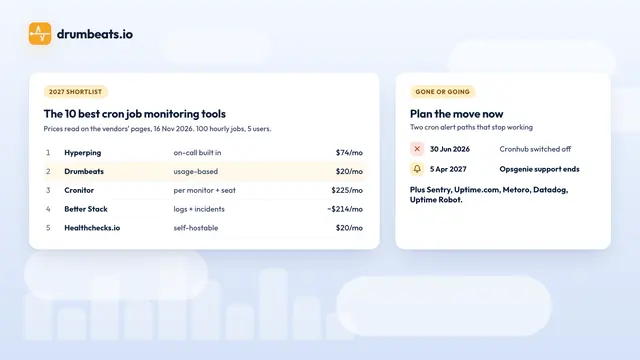
The cron job monitoring tools worth shortlisting in 2027: pricing read on 16 November 2026, free tiers, on-call, status pages, Kubernetes coverage, and which tools shut down this year.
Why We Built Drumbeats for Cron Job Monitoring
We built Drumbeats because too many cron monitoring tools still optimize for dashboards and pricing tricks instead of fast setup, clear APIs, and fair usage for real teams.